It took me a year to finally decide to write a post about AI – not because of laziness (maybe a bit), but because of the pace at which it’s evolving. I’m sure this post will be irrelevant in a year, but I felt I couldn’t wait any longer.
As you know, I’m a developer. My usage of AI is mostly focused on software development, technical advice, and the like. This post isn’t meant to be read as a bible, but merely as advice. This is my story, the path I took, and what has worked for me. I hope some of this will be relevant to you.
My path with AI was no different from my experience with any other technology. The four pillars of learning are always the same. You begin without knowing anything – the “Clueless” phase. Then, you manage to use it for something genuinely useful and become confident that you know what you’re doing – the “Naively confident” phase. Next, you tackle bugs, edge cases, and advanced features, realizing you don’t actually know how to use it properly – the “Discouragingly realistic” phase, which is actually the best part. This tells you that you are on the right track toward “Mastery,” the final phase.
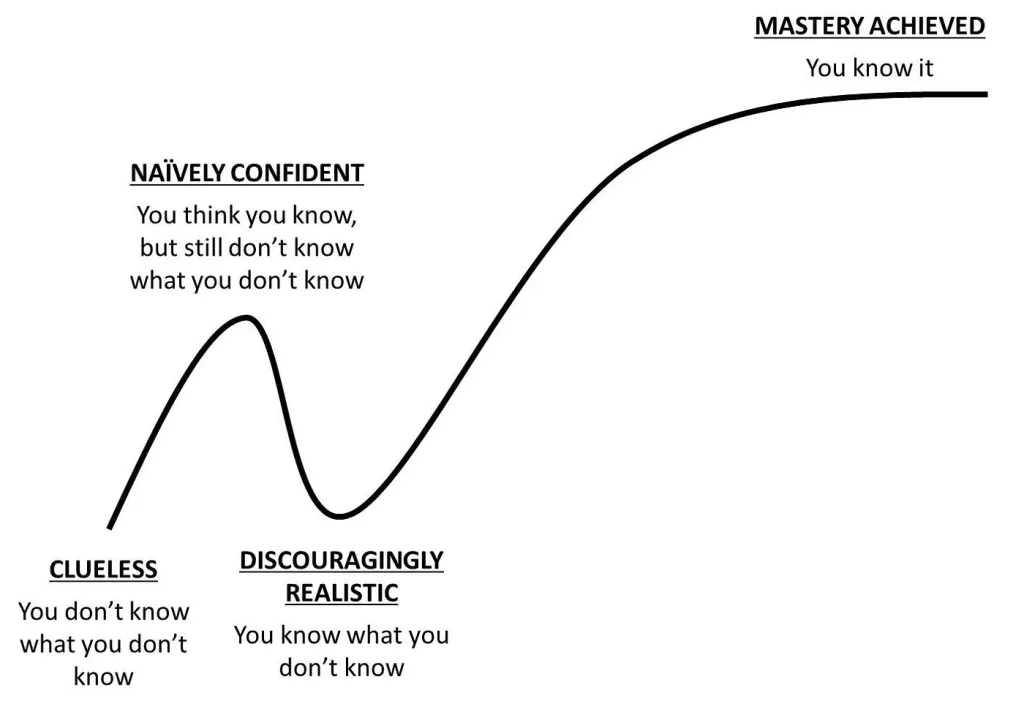
Clueless
My journey with AI started, like many of us (if not all), with ChatGPT. It was a fascinating experience to chat with “something,” receiving accurate-ish responses and watching it correct itself. “How to read a file in Python,” “How to extract a field from JSON using jq,” and so on. Copy-pasting code into PyCharm and having it actually run (most of the time) felt magic! This was great for both personal and professional use.
I remember the day I first saw the “interact with PyCharm” button. It was incredible. I didn’t have to copy-paste back and forth with ChatGPT anymore; it could read from and write to PyCharm directly. My job suddenly became much easier.
It’s funny to look back at that now, considering it was merely a year ago.
And then came Claude. We received a subscription from my workplace (Linx) that gave us virtually unlimited usage across all of Claude’s models.
I asked Claude to find our very first chat, but the oldest one it found was from June 30th, 2026 – certainly not our first. I don’t remember the exact first time I used it, but it was neat to open Claude inside PyCharm’s terminal, especially since I was already comfortable talking to a bot.
The “wow” factor came a bit later, when PyCharm was no longer required.
As a developer, I was terrified. Suddenly, English felt as capable a development language as Python. My future felt blurry. This was the first time I thought to myself that there might be no reason for anyone to learn Computer Science anymore.
Naively Confident
Around that time, I was tasked with implementing an AI Spreadsheet Converter. We wanted to give our customers the option to upload any spreadsheet, interact with an AI to explain the structure and data, and ingest that data into our systems.
My first interactions with Claude were very “ChatGPT-like” – asking how to do this or how to do that. Soon enough, it became direct commands: “do this,” “do that.”
I realized the amount of prompt text I needed to write to Claude decreased with every iteration.
Then MCPs became popular, and we connected Linear’s MCP server to Claude. Suddenly, I only had to give it a ticket ID and it knew exactly what to do.
I used Claude incessantly on this task – AI building AI. It was beautiful, and yet it didn’t work at first.
Naturally, it needed a few rounds of fixes, but in the end, it worked remarkably well.
Then came “Auto Mode.” I could stop approving every single action without relying on risky flags like `dangerously-skip-permissions`. I wasn’t the type to use that flag anyway, but I also wasn’t thoroughly auditing every script Claude wanted to run. It grew more capable, and I grew less involved. It understood what was happening better than I did. I felt that as it got better, my role was diminishing.
Phrases like “The bot did that” or “I’ll ask the bot” became common around the office. Despite all the existential drama, life was good. I was delivering features at a fast pace with minimal bugs.
Discouragingly Realistic
Those code reviews were a wake-up call. The AI team reviewed my PRs, and their perspective was completely different from mine. They flagged everything that was off. Sure, the code worked – an AI wrote it, and it compiled and ran. But the design… oh, the design! It hit me: Claude followed the ticket instructions to the letter, but missed everything implicit. It ignored SOLID principles and general clean code practices. What I thought was smooth sailing was just my naive confidence speaking.
On the other hand, I knew these tools were the future – or rather, the present. As a software engineer, I needed to adapt and master new tools to elevate my work. So, I took a step back and reevaluated my workflow. I still do this periodically whenever I feel myself drifting too far from the fundamentals.
Mastery Achieved
(Well, obviously not, but that’s the curve..)
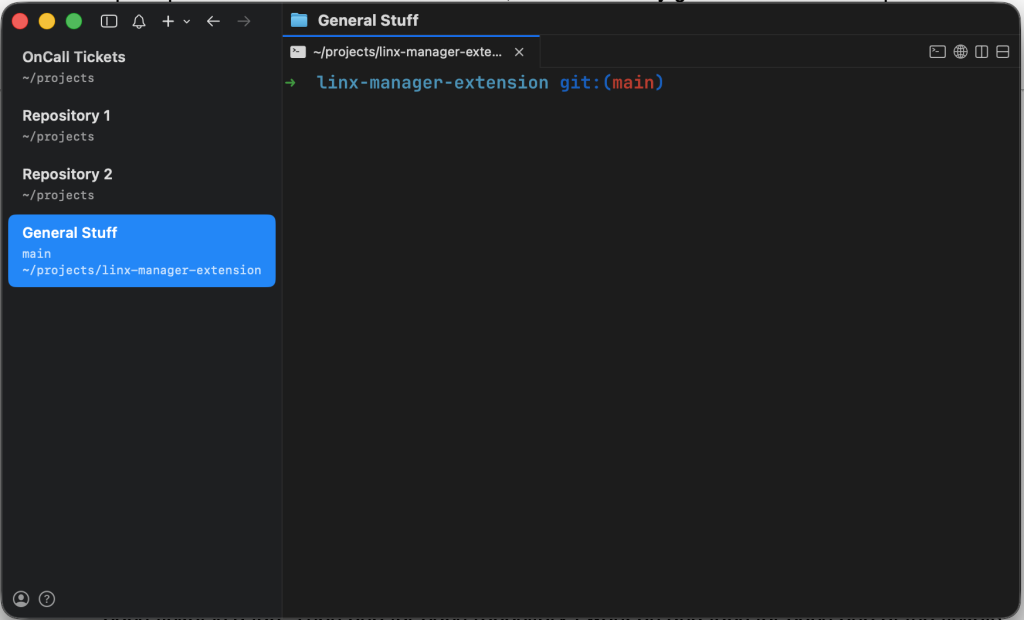
Nowadays, I keep at least 3-4 workspaces open with 2-3 Claude sessions in each. I use CMUX for multitasking, and it has become the main window on my laptop. CMUX lets you manage multiple terminal sessions in a single window – much like TMUX, but with a more user-friendly GUI. A workspace in CMUX holds multiple tabs, with each tab running a terminal session. I organize terminals by context: one workspace for on-call tickets (where each tab represents a ticket), individual workspaces for each repository I work on (with tabs for active tasks), and a separate workspace for general tasks.
Claude isn’t aware of these workspaces; they are purely for my own organization while multitasking with Claude.
Another key feature is notifications. While Claude has built-in notification settings, CMUX makes this even smoother. I receive a macOS notification whenever Claude requires input, requests permissions, or finishes a task.
Tools and Ideas
Here are a few tools and add-ons that helped me master using Claude efficiently:
Memory, Skills, Routines, CLAUDE.md, Crit, and more. Let’s dive in.
Before diving in, I want to highlight the most straightforward tip: ask Claude. Nobody understands Claude better than Claude itself. It knows the best approach for almost any scenario – just ask!
What’s fascinating is how rapidly the ecosystem evolves. Features and plugins constantly shift from “must-use” to “deprecated.” The tools I discuss below are subject to the same cycle, so keeping up to date is essential!
I focus primarily on Claude since it’s my main AI assistant, but these principles apply to almost any AI client out there.
Memory
It can be frustrating when Claude repeats mistakes despite previous feedback. What I’ve found most effective (though not foolproof) is explicitly telling it to “remember this.” That invokes its memory feature so it retains the context across future sessions.
While not foolproof, it makes a noticeable difference.
Skills
Skills are extremely helpful for repetitive task categories. For instance, we created a Skill specifically for ticket triage – a very common use case.
A skill is defined as a directory under one of the following paths:
- .claude/skills/<skill-name>/SKILL.md – project-scoped
- ~/.claude/skills/<skill-name>/SKILL.md – user-global
The SKILL.md structure follows this format:
---

name: skill-name

description: One-line trigger description - when to use this skill.

---

Body: full instructions loaded into context on invoke.
Can be steps, checklist, decision tree, what to ask the user, everything the task needs.
The description is crucial, as it determines whether the skill is auto-triggered. While you can manually invoke a skill (using /skill-name), ideally the LLM recognizes when to run a specific skill based on an explicit description. Keep the description concise, as it is loaded into context automatically on every session.
The folder can also include supplementary files for additional context, such as Markdown documentation, code examples, or configurations.
Our triage skill is straightforward: it runs on every incoming ticket, looking for duplicate issues or existing features. If no match is found, it routes the ticket to the corresponding team.
This is an ideal use case for a Skill because the workflow is standardized. Instead of explaining instructions repeatedly, you write them once and let Claude execute them reliably.
Furthermore, when a Skill is located in the project directory, it is version-controlled via Git, code-reviewed by teammates, and shared across the entire team.
Another Skill in our repo guides Claude on how to run services locally. This is incredibly useful for testing features and verifying that changes don’t break existing functionality.
Routines
This proved useful while building Linx’s MCP Gateway.
A routine is simply a skill triggered by a schedule or webhook. We initially used routines for alert categorization and automated gateway testing.
I set up an hourly routine to test a predefined set of tools via the Gateway. If a tool failed, I received a Slack notification. Later, we updated it to automatically open a Linear ticket for the on-call engineer, eventually evolving the routine into full stress testing.
Claude.md
Most developers maintain a CLAUDE.md file. It serves as a personal instruction set for Claude – ranging from preferences like “address me as X” to guidelines for generating pull requests, trimming comments, or writing concise code. One line I especially love adding is: “Correct my English grammar and spelling mistakes when you notice them” – because why not? 🙂
A colleague recently introduced me to this plugin, and it completely reshaped my review workflow.
How it works:
In Plan Mode, it displays the proposed plan in a browser window, allowing you to comment, discuss, and refine it before execution.
When applying code changes, it previews the diff locally in a PR-like interface before you create an actual pull request. This lets you comment on and polish changes locally, making short cycles with Claude, resulting in cleaner PRs and higher confidence in the output.
Aliases
Running Claude from the command line gives you access to powerful flags. For example, you can pass a system prompt directly from a file alongside an initial command-line prompt.
This inspired me to set up several aliases to streamline repetitive tasks:
cc-slack <slack_thread_url> launches Claude, inspects the specified Slack thread (usually reporting a bug), loads the necessary tools, and triages the issue – all with a single command.
cc-slack() {

  claude --append-system-prompt-file /Users/user/projects/main_repo/tools/system_prompts/slack_thread_triage.md "Triage the bug reported in this Slack thread: $1"

}
cc-ticket <issue> launches Claude with a topic or bug description, prompts it to research the codebase, ask clarifying questions, and automatically generate a fully tagged Linear ticket.
cc-ticket() {

  claude --append-system-prompt-file /Users/user/projects/main_repo/tools/system_prompts/create_linear_ticket.md "Create a Linear ticket for: $*"

}
As you can see, the injected system prompts aren’t just local files; they come directly from our shared company repository. They are version-controlled, peer-reviewed, and up to date. These prompts are concise – often under 10 lines – providing targeted context without clutter.
With these workflows in place, I regularly manage 8–10 parallel sessions, tracking progress and shipping features at a speed I didn’t think was possible. I still make a point to solve a few tasks manually so I don’t lose my technical edge, though that’s getting harder to resist!
This is my current approach to working with AI. As the technology continues to evolve, I’ll update this post with new lessons and adjustments along the way.
I hope this gives you some practical ideas to try in your own workflow.
See you soon!
No Comments